Welcome to the future of home lighting! As a smart lighting enthusiast with over a decade of hands-on experience and a dedicated content creator for Srjja.com, I’ve seen countless innovations transform the way we illuminate our spaces. Among the myriad of choices, Philips Smart Led Bulbs consistently stand out as a cornerstone of intelligent home design. They’re more than just lights; they’re dynamic tools that unlock unparalleled convenience, personalization, and energy efficiency, effortlessly turning any room into a haven of comfort and style.
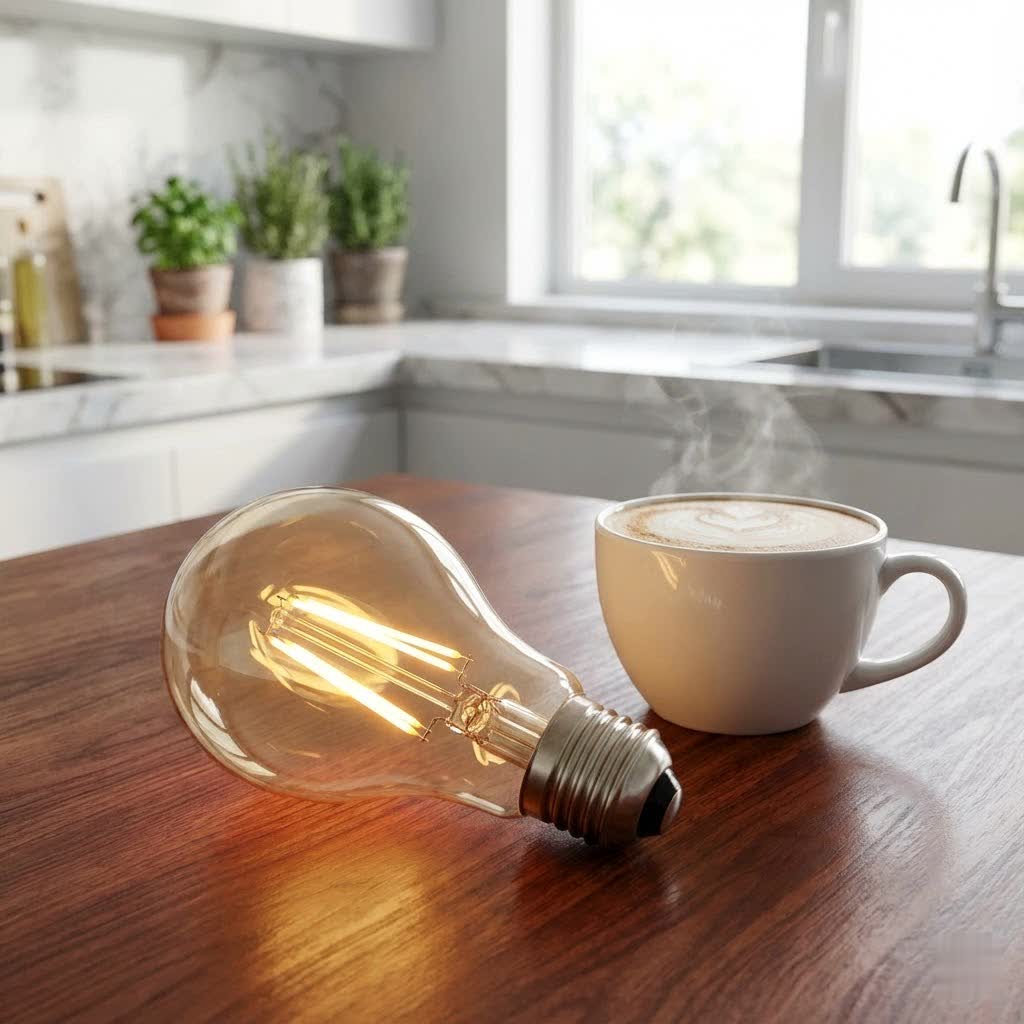
Whether you’re looking to create the perfect mood for a quiet evening, automate your lighting for daily routines, or simply make your home smarter, Philips offers a solution. Let’s dive deep into the world of Philips Smart LED bulbs, from understanding their core technologies to mastering their setup and troubleshooting any hiccups along the way.
Understanding Philips Smart LED Bulbs: Hue vs. WiZ
Before you embark on your smart lighting journey, it’s crucial to understand that Philips offers two primary lines of smart LED bulbs, each designed to cater to different needs and preferences: Philips Hue and Philips Smart Wi-Fi (WiZ Connected). While both deliver fantastic smart lighting experiences, their underlying technology and ecosystem approaches differ.
Philips Hue: The Premium Ecosystem for Comprehensive Control
Philips Hue is the undisputed champion of the smart lighting world, renowned for its robust ecosystem and extensive capabilities. At its heart, the full Philips Hue experience revolves around the Hue Bridge. This small, square device connects to your home router and acts as the central brain of your lighting system, communicating with your bulbs using the highly reliable Zigbee protocol.
With a Hue Bridge, you can connect up to 50 lights and accessories, enabling advanced features like:
- Away-from-home control: Manage your lights from anywhere in the world.
- Complex automations and routines: Set sophisticated schedules, wake-up/go-to-sleep routines, and even mimic your presence when you’re away for added security.
- Integration with smart home platforms: Enjoy full voice control via Amazon Alexa, Google Assistant, and Apple HomeKit, along with integration into broader smart home setups.
- Entertainment syncing: Experience immersive lighting that reacts to your movies, music, and games through Hue Sync.
Newer Philips Hue bulbs also feature Bluetooth connectivity, allowing for direct control via the Philips Hue app without a Bridge. This is a fantastic entry point for beginners, letting you control up to 10 bulbs in a single room with basic functions like on/off, dimming, and color changes. However, for the full spectrum of Hue’s intelligent features, a Bridge remains essential.
Philips Hue bulbs come in several varieties:
- White: Offers warm white light (e.g., 2700K) for a cozy atmosphere.
- White Ambiance: Provides tunable white light, letting you adjust the color temperature from warm (2200K) to cool daylight (6500K) to suit any task or mood.
- White and Color Ambiance: The flagship experience, delivering millions of colors alongside a full range of tunable white light.
|
Our Picks for the Best Smart Bulb in 2026
As an Amazon Associate I earn from qualifying purchases.
|
||
| Num | Product | Action |
|---|---|---|
| 1 | Tapo TP-Link Smart Light Bulbs, 16M Colors RGBW, Dimmable, Compatible with Alexa and Google Home, A19, 60W Equivalent, 800LM CRI>90, 2.4GHz WiFi only, No Hub Required, L530E(4-Pack) |

|
| 2 | Govee LED Smart Light Bulbs, 1000LM Color Changing Light Bulb, Wi-Fi & Bluetooth Light Bulbs, Work with Alexa and Google Assistant, Dimmable RGBWW A19 75W Equivalent Smart Bulbs, 2 Pack |
|
| 3 | Kasa Smart Light Bulbs that works with Alexa and Google Home, Dimmable Smart LED Bulb, A19, 9W, 800Lumens, Soft White(2700K), CRI≥90, WiFi 2.4Ghz only, No Hub Required, 4 Count (Pack of 1)(KL110P4) |
|
| 4 | Govee Smart Light Bulbs, Color Changing Light Bulb, Work with Alexa and Google Assistant, 16 Million Colors RGBWW, WiFi & Bluetooth LED Light Bulbs, Music Sync, A19, 800 Lumens, 4 Pack |
|
| 5 | Amazon Basics Smart A19 LED Light Bulb, Color Changing, 9W (60W Equivalent), 800LM, Works with Alexa Only, 2.4 GHz Wi-Fi, No Hub Required, 1 Pack |
|
| 6 | Linkind Smart Light Bulbs, Smart Bulb That Work with Alexa & Google Home, LED Light Bulbs Color Changing, 104 Preset Scene, Music Sync, A19 E26 2.4GHz RGBTW WiFi Bluetooth Light Bulb 60W, 800LM, 4Pack |
|
| 7 | Amazon Basics Smart A19 LED Light Bulb, Dimmable Soft White (2700K), 9W (60W Equivalent), 800LM, Works with Alexa Only, 2.4 GHz Wi-Fi, No Hub Required, 4 Pack |
|
| 8 | SYLVANIA Wifi LED Smart Light Bulb, 60W Equivalent Full Color and Tunable White A19, Dimmable, Compatible with Alexa and Google Home Only - 4 Pack (75674) |
|
| 9 | Kasa Smart Light Bulbs, Full Color Changing Dimmable Smart WiFi Bulbs Compatible with Alexa and Google Home, A19, 60 W 800 Lumens,2.4Ghz only, No Hub Required, 2-Pack (KL125P2), Multicolor |
|
| 10 | Bluex Bulbs 3 Pack Motion Sensor LED Light Bulb A21, 15W 1300 Lumens, Warm White 3000K, Automatic On/Off Security Light, E26 Medium Base Indoor & Outdoor Use, 120V (3000K - Warm White) |
|
Philips Smart Wi-Fi (WiZ Connected): The Accessible, Hub-Free Choice
For those seeking a simpler, more budget-friendly entry into smart lighting without the need for a separate hub, Philips Smart Wi-Fi bulbs (often branded as WiZ Connected) are an excellent alternative. These bulbs connect directly to your home’s Wi-Fi network, making setup straightforward and requiring only the WiZ app on your smartphone.
Despite their hub-free design, WiZ Connected bulbs offer a compelling suite of features:
- Direct app control: Manage your lights from anywhere with the intuitive WiZ app.
- Voice control: Integrate seamlessly with Amazon Alexa, Google Assistant, and Siri Shortcuts for hands-free operation.
- Scenes and schedules: Create custom lighting scenes and set schedules for your lights to automate your daily life.
- Dynamic lighting effects: Explore pre-set modes and dynamic light effects for a lively ambiance.
While WiZ Connected bulbs don’t integrate with the Hue ecosystem or offer some of Hue’s more advanced features like entertainment syncing, they provide a robust and affordable smart lighting solution for many households.
Key Features and Capabilities: What Philips Smart Bulbs Can Do For You
Both Philips Hue and WiZ Connected bulbs empower you with incredible control and customization. Here’s a closer look at the innovative features that transform everyday lighting into an extraordinary experience:
Vibrant Lighting Control
Imagine having a palette of light at your fingertips. Philips Smart LED bulbs make it a reality:
- Brightness and Dimming: Effortlessly adjust the brightness from a gentle glow to full illumination. Many bulbs, even white-only models, offer impressive dimming capabilities directly through the app or voice commands.
- Tunable White: With White Ambiance and White and Color Ambiance bulbs, you can shift the color temperature of white light. Need to focus? Opt for cool, crisp daylight. Winding down for the evening? Embrace warm, inviting tones. This adaptability significantly impacts productivity and relaxation.
- Millions of Colors: Philips Hue White and Color Ambiance bulbs, along with many WiZ Connected color bulbs, can produce over 16 million colors. This opens up endless possibilities for mood lighting, festive decorations, or creating immersive environments. “The ability to truly sculpt light with such precision is what sets Philips smart bulbs apart,” notes lighting design veteran, Dr. Elara Vance. “It’s not just about turning lights on and off; it’s about crafting an atmosphere.”
Seamless Smart Home Integration
Philips Smart LED bulbs are designed to be part of a larger, interconnected smart home:
- Voice Control: Command your lights with simple spoken phrases using Amazon Alexa, Google Assistant, or Apple HomeKit (for Hue) and Siri Shortcuts (for WiZ). “Alexa, set the living room to ‘Relax’,” or “Hey Google, dim the bedroom lights to 30%,” makes controlling your lighting effortless.
- App Control: Both the Philips Hue app and the WiZ app are intuitive and feature-rich, providing granular control over individual bulbs, rooms, scenes, and automations from your smartphone or tablet.
- Wider Compatibility: Philips Hue, especially with the Bridge, integrates with a vast array of third-party smart home platforms like IFTTT, SmartThings, and more. Newer Hue bulbs also support Matter, the universal smart home standard, allowing for even broader compatibility with Matter-enabled controllers.
Automations and Schedules
Take the guesswork out of lighting with smart automations that adapt to your lifestyle:
- Set Routines: Program your lights to gradually brighten in the morning for a gentle wake-up or slowly dim in the evening to prepare your body for sleep.
- Schedule On/Off Times: Have lights turn on when you arrive home and off when you leave, or automate porch lights for security.
- Mimic Presence for Security: Create routines that make it appear as though someone is home, even when you’re away, by randomly turning lights on and off.
Immersive Experiences (Philips Hue Specific with Bridge)
The Hue ecosystem offers unique, immersive features that elevate entertainment and home security:
- Hue Sync for Entertainment: For a truly captivating experience, connect your Philips Hue lights (with a Bridge) to your entertainment setup. Your lights will dynamically change color and brightness to sync with the action on your TV, the beat of your music, or the intensity of your games, blurring the lines between your screen and your room.
- MotionAware for Presence Detection: Exclusive to the Hue Bridge Pro, this innovative feature allows your lights to detect presence by measuring fluctuations in Zigbee signals, effectively turning your lights into smart motion sensors. This can trigger lights, send notifications, and even integrate with Hue Secure for enhanced home security.
Setting Up Your Philips Smart LED Bulbs: A Step-by-Step Guide
Getting your Philips Smart LED bulbs up and running is typically straightforward, but the exact steps depend on the type of bulb and your chosen setup.
Option 1: With a Philips Hue Bridge (Recommended for Full Hue Experience)
- Connect the Hue Bridge: Plug your Hue Bridge into a power outlet and connect it to your home router using the included Ethernet cable. All three indicator lights on the Bridge should turn solid blue.
- Download and Open the Philips Hue App: Get the latest Philips Hue app from your device’s app store.
- Pair the Bridge: Follow the in-app instructions to discover and pair your Bridge. You’ll likely press the large button on the Bridge when prompted.
- Install Your Bulbs: Screw your Philips Hue bulbs into your light fixtures and turn on the physical light switches.
- Add Lights in the App: In the Hue app, navigate to Settings > Lights, then tap the “+” icon or “Add light.” The app will search for your new bulbs. Once found, you can assign them to rooms and customize them.
Option 2: Bluetooth-Enabled Philips Hue Bulbs (No Bridge Required for Basic Control)
- Verify Bluetooth Capability: Look for the Bluetooth logo on your Philips Hue bulb’s packaging or on the bulb itself.
- Download and Open the Philips Hue App: Ensure you have the Philips Hue app (not the older “Hue Bluetooth” app, as they’ve merged) and that Bluetooth is enabled on your smartphone.
- Install and Power On: Screw the bulb into a fixture and turn on the physical light switch.
- Pair in App: Open the Hue app. It will automatically search for nearby Bluetooth-enabled bulbs. Move your phone close to the bulb if it struggles to connect. Once found, follow the prompts to pair and customize.
Option 3: Philips Smart Wi-Fi (WiZ Connected) Bulbs (No Bridge Required)
- Install and Power On: Screw your WiZ Connected bulb into a fixture and turn on the light switch.
- Download and Open the WiZ App: Install the WiZ app on your smartphone.
- Connect to Wi-Fi: The app will guide you through connecting the bulb to your home’s Wi-Fi network. This often involves temporarily connecting your phone to the bulb’s direct Wi-Fi signal during setup.
- Customize: Once connected, you can name the bulb, assign it to a room, and start exploring its features.
Option 4: Matter-Enabled Hue Bulbs (Direct Connection to a Matter Controller)
- Gather Your Tools: You’ll need a Matter-enabled Philips Hue bulb (look for the Matter logo) and a compatible Matter controller hub (e.g., Apple HomePod Mini, Google Nest Hub 2nd Gen, Amazon Echo 4th Gen).
- Open Your Smart Home App: Launch the app for your Matter controller (e.g., Apple Home, Google Home, Amazon Alexa).
- Add Device: Select the option to add a new device.
- Scan QR Code: Scan the Matter QR code provided in the bulb’s packaging or on the bulb itself.
- Power On and Pair: Power on your Hue bulb. It should enter pairing mode (often indicated by blinking). Follow any additional on-screen instructions in your smart home app to complete the pairing and customization.
- Important Note: If the bulb was previously connected to a Hue Bridge, you must remove it from the Bridge first before attempting Matter pairing.
Maximizing Your Smart Bulb Experience: Tips for Use and Maintenance
To truly get the most out of your Philips Smart LED bulbs and ensure their longevity, here are some expert tips:
- Optimal Placement for Connectivity: For Philips Hue systems using a Bridge, ensure your Bridge is centrally located and not surrounded by dense objects or other electronics that could interfere with the Zigbee signal. For Wi-Fi bulbs, a strong Wi-Fi signal in the bulb’s location is key.
- Master Scene Creation: Don’t just stick to basic on/off. Experiment with custom scenes for different activities (e.g., “Reading,” “Movie Night,” “Dinner Party”) or times of day. This is where the magic of smart lighting truly shines.
- Keep Firmware Updated: Regularly check for and install firmware updates for both your bulbs and (if applicable) your Hue Bridge. Updates often bring new features, performance improvements, and crucial bug fixes. This can be done through the respective Philips Hue or WiZ apps.
- Gentle Cleaning: Like any light fixture, bulbs can collect dust. Gently wipe them with a dry, soft cloth when they are cool and powered off. Avoid harsh chemicals or abrasive materials.
- Leverage Energy Efficiency: All Philips Smart LED bulbs use energy-efficient LED technology, but you can maximize savings by utilizing schedules and motion sensors (with Hue) to ensure lights are only on when needed.
- Use the Right Switches: For Philips Hue, it’s best to keep physical wall switches “always on.” If you prefer physical control, consider Philips Hue Dimmer Switches or smart wall switches designed to integrate with the Hue ecosystem, rather than traditional dimmers that can interfere with smart bulb electronics.
Troubleshooting Common Issues with Your Philips Smart LED Bulbs
Even the most advanced smart lighting systems can encounter occasional glitches. Here’s how to troubleshoot common problems with your Philips Smart LED bulbs:
Bulb Not Responding or Unreachable
- Check Power: Ensure the physical light switch is turned on and the bulb is securely screwed into the socket. Sometimes, a simple power cycle (turning the physical switch off then on) can resolve the issue.
- Restart App/Bridge: Close and reopen your Philips Hue or WiZ app. If you’re using a Hue Bridge, unplug it from power for about 10 seconds, then plug it back in and wait for it to fully restart.
- Manual Adding: If a bulb isn’t discovered automatically, try adding it manually. In the Philips Hue app, go to Settings > Lights > Add light > Search, or enter the bulb’s serial number if prompted. The WiZ app also has options for manual pairing.
- Range Issues: For Hue bulbs, the Bridge might be too far from the bulb, or there could be interference. Try moving the Bridge closer or relocating other electronics.
Connectivity Problems
- Zigbee Interference (Philips Hue): Other wireless devices (like Wi-Fi routers, cordless phones, microwaves) operating on similar frequencies can interfere with the Zigbee signal. Try changing the Zigbee channel in your Hue app (Settings > Hue Bridges > (i) icon > Zigbee channel) or moving the Bridge away from other electronics.
- Wi-Fi Signal Strength (WiZ Connected): Ensure your Wi-Fi router provides a strong signal to where the WiZ bulb is located. Obstacles like thick walls can weaken the signal. Consider a Wi-Fi extender if needed.
- Bulb Reset: If a specific bulb consistently has issues, a soft reset or factory reset might be necessary.
- Soft Reset (Power Cycling): Turn the bulb off for 5 seconds, on for 8 seconds, off for 2 seconds, on for 8 seconds, and repeat this pattern until the bulb flashes, indicating a reset.
- Factory Reset via Dimmer Switch (Hue): With the bulb on, hold a Hue Dimmer Switch close to it (within 6 inches) and press and hold the “On” and “Off” buttons simultaneously (or “On” and scene selection buttons for newer dimmers) until the bulb flashes.
- Factory Reset via TouchLink (Hue): Advanced users with Zigbee coordinators can use the TouchLink method to factory reset bulbs.
Flickering or High-Frequency Noise
- Firmware Update: Ensure your bulbs have the latest firmware, as updates often address these types of electrical quirks.
- Incompatible Dimmers: If you’re using a traditional dimmer switch with a smart bulb, it can cause flickering or noise, as smart bulbs are designed for constant power. Use the app or a compatible smart dimmer switch.
- Loose Connections: Check that the bulb is screwed in tightly.
Factory Resetting Your Hue Bridge
If your entire Hue system becomes unresponsive or you’re starting fresh, you might need to factory reset the Hue Bridge.
- Locate Reset Button: Flip the Hue Bridge over. You’ll find a small reset button (often recessed).
- Press and Hold: Use a paperclip or a similar tool to press and hold the reset button for about 5 seconds until the lights on the Bridge start to blink.
- Restart: Wait for the lights to stop blinking and turn solid. All your previous settings and paired devices will be wiped, requiring you to reconnect everything via the Hue app.
Choosing the Right Philips Smart LED Bulb for You
With so many options, how do you pick the perfect Philips Smart LED bulbs for your home?
- Consider Your Needs:
- Basic Control & Budget: If you only need on/off, dimming, and color changes for a few bulbs in one room, Bluetooth-enabled Philips Hue bulbs or Philips Smart Wi-Fi (WiZ) bulbs are excellent, cost-effective choices that don’t require a Bridge.
- Full Smart Home Integration & Advanced Features: For whole-home control, away-from-home access, entertainment syncing, security features, and integration with a wider smart home ecosystem, investing in a Philips Hue Bridge and its associated bulbs is the way to go.
- Bulb Type and Form Factor: Philips offers a vast array of bulb shapes and sizes to fit various fixtures: standard A19/A60, GU10 spotlights, BR30 floodlights, decorative filament bulbs, light strips, and even outdoor lighting solutions. Consider where you’ll be placing the bulbs and what aesthetic you’re aiming for.
- Color vs. White: Decide if you need tunable white light (White Ambiance) or the full spectrum of colors (White and Color Ambiance). White-only bulbs are ideal for functional lighting where color isn’t a priority, offering a more affordable option.
- Brightness (Lumens): Check the lumen output to ensure the bulb is bright enough for your space. Newer Philips Hue bulbs can reach up to 1600 lumens, equivalent to a 100W incandescent bulb, providing ample light for larger rooms.
Conclusion
Philips Smart LED bulbs, whether part of the expansive Hue ecosystem or the accessible WiZ Connected range, truly redefine home lighting. They offer a powerful blend of cutting-edge technology, intuitive control, and unparalleled customization, empowering you to craft the perfect ambiance for every moment. From setting dynamic scenes to automating your daily routines and even enhancing your home security, these intelligent lights bring a new level of comfort and sophistication to your living space.
Embrace the smart lighting revolution. Explore the possibilities, experiment with colors and automations, and discover how Philips Smart LED bulbs can transform your home into a more vibrant, efficient, and intelligent environment. Your journey to a smarter home starts with light, and Philips is here to guide the way.
