Lumiman smart bulbs are an accessible and feature-rich option for smart home lighting, offering 16 million colors, tunable white light from 2700K to 6500K, and direct Wi-Fi connectivity without a hub. They integrate seamlessly with Amazon Alexa and Google Home Assistant for voice control, and are energy-efficient LED bulbs designed for longevity. Users can also enjoy advanced features like music sync and custom dynamic scenes through the PlusMinus or Smart Life app.
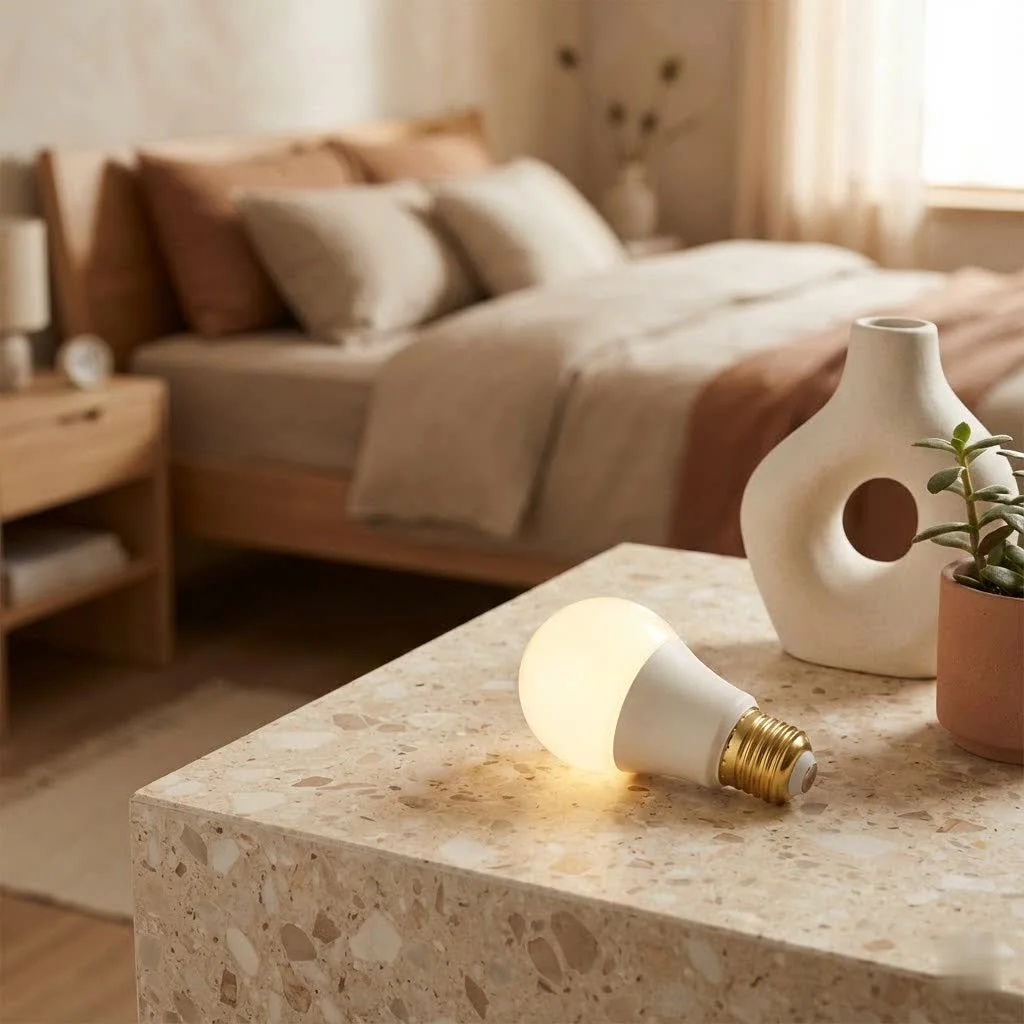
What Makes Lumiman Smart Bulbs Shine? Key Features & Benefits
Lumiman smart bulbs are designed to bring a touch of intelligence and personality to your lighting. They are packed with features that cater to both everyday practicality and creative ambiance. For compare top smart home on this site.
A Spectrum of Colors and Tunable Whites
One of the most appealing aspects of Lumiman smart bulbs is their impressive color capabilities. Imagine choosing from 16 million colors to perfectly match your mood, decor, or a special occasion. Beyond vibrant hues, these bulbs also offer tunable white light, allowing you to seamlessly adjust the color temperature from a cozy warm white (around 2700K) to a crisp, energizing cool white (up to 6500K or even 9000K in some models). This flexibility means you can have bright, focused light for tasks during the day and a softer, more relaxing glow in the evening.
Seamless Smart Home Integration (Alexa & Google Home)
Lumiman smart bulbs are engineered for effortless integration into popular smart home platforms. They are fully compatible with Amazon Alexa and Google Home Assistant, transforming your voice into a remote control. You can simply say, “Alexa, turn on the living room lights” or “Hey Google, change the bedroom light to blue,” and watch your commands come to life. This hands-free control adds a layer of convenience that truly elevates your smart home experience.
No Hub? No Problem!
Unlike some other smart lighting systems that require a dedicated bridge or hub to connect your bulbs to your home network, Lumiman smart bulbs are largely “hub-free.” They connect directly to your home’s 2.4GHz Wi-Fi network, simplifying installation and reducing clutter. This makes them an excellent, cost-effective choice for newcomers to smart home technology who don’t want the added expense or complexity of an extra device.
Energy Efficiency and Longevity
As LED bulbs, Lumiman smart bulbs are inherently energy-efficient, consuming significantly less power than traditional incandescent bulbs while delivering comparable brightness. This translates into lower electricity bills and a reduced environmental footprint. LED technology boasts a remarkable lifespan, often lasting for tens of thousands of hours, meaning you won’t be replacing these bulbs anytime soon.
Beyond Illumination: Music Sync and Dynamic Scenes
|
Our Picks for the Best Smart Bulb in 2026
As an Amazon Associate I earn from qualifying purchases.
|
||
| Num | Product | Action |
|---|---|---|
| 1 | Linkind Smart Light Bulbs, Smart Bulb That Work with Alexa & Google Home, LED Light Bulbs Color Changing, 104 Preset Scene, Music Sync, A19 E26 2.4GHz RGBTW WiFi Bluetooth Light Bulb 60W, 800LM, 4Pack |

|
| 2 | Govee LED Smart Light Bulbs, 1000LM Color Changing Light Bulb, Wi-Fi & Bluetooth Light Bulbs, Work with Alexa and Google Assistant, Dimmable RGBWW A19 75W Equivalent Smart Bulbs, 2 Pack |
|
| 3 | Govee Smart Light Bulbs, Color Changing Light Bulb, Work with Alexa and Google Assistant, 16 Million Colors RGBWW, WiFi & Bluetooth LED Light Bulbs, Music Sync, A19, 800 Lumens, 4 Pack |
|
| 4 | SYLVANIA Wifi LED Smart Light Bulb, 60W Equivalent Full Color and Tunable White A19, Dimmable, Compatible with Alexa and Google Home Only - 4 Pack (75674) |
|
| 5 | Bluex Bulbs 3 Pack Motion Sensor LED Light Bulb A21, 15W 1300 Lumens, Warm White 3000K, Automatic On/Off Security Light, E26 Medium Base Indoor & Outdoor Use, 120V (3000K - Warm White) |
|
| 6 | Tapo TP-Link Smart Light Bulbs, 16M Colors RGBW, Dimmable, Compatible with Alexa and Google Home, A19, 60W Equivalent, 800LM CRI>90, 2.4GHz WiFi only, No Hub Required, L530E(4-Pack) |
|
| 7 | Amazon Basics Smart A19 LED Light Bulb, Dimmable Soft White (2700K), 9W (60W Equivalent), 800LM, Works with Alexa Only, 2.4 GHz Wi-Fi, No Hub Required, 4 Pack |
|
| 8 | Amazon Basics Smart A19 LED Light Bulb, Color Changing, 9W (60W Equivalent), 800LM, Works with Alexa Only, 2.4 GHz Wi-Fi, No Hub Required, 1 Pack |
|
| 9 | Kasa Smart Light Bulbs, Full Color Changing Dimmable Smart WiFi Bulbs Compatible with Alexa and Google Home, A19, 60 W 800 Lumens,2.4Ghz only, No Hub Required, 2-Pack (KL125P2), Multicolor |
|
| 10 | Kasa Smart Light Bulbs that works with Alexa and Google Home, Dimmable Smart LED Bulb, A19, 9W, 800Lumens, Soft White(2700K), CRI≥90, WiFi 2.4Ghz only, No Hub Required, 4 Count (Pack of 1)(KL110P4) |
|
Lumiman bulbs go beyond basic on/off and dimming. Many models feature a music sync function, allowing your lights to pulse and change colors in rhythm with your favorite tunes, creating an immersive party atmosphere or a dynamic relaxation space. You can also create custom scenes and routines through the accompanying app. For instance, set a “Movie Night” scene that dims the lights and shifts them to a warm, cinematic glow, or a “Wake Up” routine that gradually brightens your room with cool white light.
“The beauty of Lumiman smart bulbs lies in their versatility,” notes Dr. Anya Sharma, Lead Smart Home Engineer at Srjja.com. “They empower users to truly personalize their environment, moving beyond static lighting to dynamic, responsive illumination that enhances daily life.”
Getting Started: Your Step-by-Step Lumiman Smart Bulb Setup Guide
Setting up your Lumiman smart bulb is generally straightforward, but knowing the right steps can save you time and potential headaches. Here’s how to get your smart lights up and running.
Pre-Installation Checklist
Before you begin, ensure you have the following:
- A Lumiman smart bulb: Of course!
- A smartphone or tablet: With the “PlusMinus” or “Smart Life” app downloaded (available on iOS and Android).
- A 2.4GHz Wi-Fi network: Lumiman bulbs primarily connect to 2.4GHz networks for initial setup. While some routers offer both 2.4GHz and 5GHz bands under one name, it’s best to ensure your phone is connected to the 2.4GHz band during setup.
- Your Wi-Fi password: Double-check it!
The Power Cycle: Entering Pairing Mode
This is often the trickiest part for new users, but it’s essential. To put your Lumiman smart bulb into pairing mode:
- Screw in the bulb: Install your Lumiman bulb into a standard light socket.
- Ensure power is off: Make sure the light switch is in the “off” position.
- Perform the power cycle: Turn the light switch on-off-on-off-on rapidly (some instructions say 3-4 times on-off, then on). Wait approximately 1-2 seconds between each flip.
- Observe the bulb: The bulb should begin to blink rapidly (EZ mode, typically cool white flashes) or “breathe” slowly (AP mode, often warm white breathing). This indicates it’s in pairing mode and ready to connect. If it doesn’t blink, repeat the power cycle carefully.
Connecting via the PlusMinus/Smart Life App
Once your bulb is in pairing mode:
- Open the app: Launch the “PlusMinus” or “Smart Life” app on your smartphone.
- Add Device: Tap “Add Device” (usually a “+” sign in the upper right corner) and select the device type, often “Lighting” > “Light Source (Wi-Fi).”
- Confirm blinking: The app will ask you to confirm that the light is blinking/breathing.
- Enter Wi-Fi details: Input your 2.4GHz Wi-Fi network name (SSID) and password.
- Connect: Follow the in-app prompts. For EZ mode, the app usually connects automatically. For AP mode, you might be instructed to temporarily connect your phone’s Wi-Fi to a network named “SmartLife-XXXX” or similar before returning to the app.
- Success! The bulb should connect within a minute, and you can then rename it and begin controlling it.
Integrating with Voice Assistants
To link your Lumiman bulbs with Alexa or Google Home:
- Enable the Skill/Action: In your Amazon Alexa or Google Home app, go to “Skills & Games” (Alexa) or “Works with Google” (Google Home). Search for the “PlusMinus” or “Smart Life” skill/action and enable it.
- Link Accounts: You’ll be prompted to log in with your PlusMinus/Smart Life app account credentials to link the accounts.
- Discover Devices: Once linked, ask your voice assistant to “Discover devices” or allow it to discover them automatically. Your Lumiman bulbs should appear in your smart home app, ready for voice control.
Keeping Your Lumiman Smart Bulbs Glowing: Usage & Maintenance Tips
Smart bulbs, like any smart device, thrive with a little care and understanding. Here are some tips to maximize the lifespan and performance of your Lumiman smart bulbs.
Smart Control Best Practices
Always use the app or voice commands to turn your Lumiman smart bulbs on and off. If you frequently use a traditional wall switch, it cuts power to the bulb, causing it to lose its connection to your Wi-Fi network and potentially requiring you to set it up again. “Think of the wall switch as an emergency power cut-off, not your daily control,” advises Dr. Anya Sharma. While Lumiman bulbs retain their last setting after a power outage, consistently using the switch can disrupt smart functionality.
Firmware Updates: Staying Current
Occasionally, the PlusMinus or Smart Life app may notify you of firmware updates for your bulbs. These updates often bring performance improvements, bug fixes, and sometimes even new features. Make it a habit to check for and apply these updates to ensure your bulbs are running optimally.
Placement and Environment Considerations
- Indoor use only: Lumiman bulbs are designed for indoor environments with ambient temperature control.
- Avoid damp locations: Do not install the bulbs in wet or damp surfaces, and always ensure your hands are dry during installation.
- Wi-Fi signal strength: For optimal performance and reliable connectivity, ensure your bulbs are installed in locations with a strong 2.4GHz Wi-Fi signal. Metal lampshades or fixtures can sometimes block Wi-Fi signals, affecting performance.
Troubleshooting Common Lumiman Smart Bulb Issues
Even with the best preparation, smart devices can sometimes be finicky. Here are solutions to common problems you might encounter with your Lumiman smart bulbs.
“My Bulb Won’t Connect to Wi-Fi!”
This is the most common hurdle. Here’s a troubleshooting checklist:
- Is it in pairing mode? Ensure the bulb is blinking/breathing correctly after the power cycle.
- 2.4GHz Wi-Fi: Your phone MUST be connected to a 2.4GHz Wi-Fi network during setup. Lumiman bulbs do not support 5GHz for initial pairing.
- Correct password: Double-check your Wi-Fi password for typos.
- Proximity: Keep your phone, the bulb, and your Wi-Fi router close to each other during the setup process.
- Router settings:
- WPA2-PSK/AES encryption: Confirm your router uses this encryption method or has it set to automatic.
- DHCP enabled: Ensure your router’s DHCP service is enabled so the bulb can get an IP address.
- MAC address filter: If enabled, temporarily disable it or add the bulb’s MAC address to the allowed list.
- Device limit: Some older routers have limits on how many devices can connect. Try disconnecting other devices temporarily.
- Smart Connect: If your router has a “Smart Connect” feature that combines 2.4GHz and 5GHz bands under one name, it might cause issues. Consider disabling it or separating the bands with different names.
- VPN: Turn off any VPN service on your phone during setup.
- Try AP Mode: If EZ mode (rapid blinking) fails, try switching to AP mode (slow breathing) within the app for an alternative connection method.
“It’s Not Blinking!” (Pairing Mode Problems)
If your bulb refuses to enter pairing mode:
- Power cycle carefully: The timing of the on-off-on-off-on sequence is crucial. Try again, ensuring consistent 1-2 second intervals between flips.
- Verify power: Make sure the light fixture and switch are working correctly and the bulb is receiving power.
- Different types: that classic versions might flash rapidly in cool white, while updated versions “breathe” slowly in warm white. Both indicate pairing mode.
Voice Control Glitches
If Alexa or Google Home aren’t responding to your commands:
- Account linking: Confirm your PlusMinus/Smart Life account is correctly linked to your Alexa/Google Home app.
- Device status: Ensure the Lumiman bulb is showing as “online” in its native app (PlusMinus/Smart Life). Offline devices cannot be controlled.
- Device discovery: Try asking your voice assistant to “discover devices” again.
- Rename devices: Use simple, distinct names for your bulbs in the PlusMinus/Smart Life app and ensure Alexa/Google Home also recognizes these names.
Is a Lumiman Smart Bulb Right for You? Expert Insights
Choosing smart lighting involves weighing various factors. Here’s an expert perspective on Lumiman smart bulbs.
Pros: Affordability and Feature-Rich
Lumiman smart bulbs are often lauded for their competitive pricing, making smart lighting accessible without a significant upfront investment. Despite the lower cost, they don’t skimp on features like 16 million colors, tunable white, dimming, scheduling, and music sync. The “no hub required” aspect is a major draw, simplifying the setup and reducing hardware. They are particularly well-suited for small to medium-sized rooms where their 800-lumen output is ample.
Cons: Brightness Limitations and Setup Nuances
While 800 lumens is sufficient for many spaces, it might not be bright enough to adequately illuminate larger living rooms or open-plan areas. If you need intense, room-filling light, you might need multiple Lumiman bulbs or consider higher-lumen options from other brands. Some users also report the initial setup process can be “a pain,” requiring patience with the power cycle sequence and Wi-Fi configurations. However, with the right guidance, these challenges are usually overcome.
Your Burning Questions About Lumiman Smart Bulbs Answered (FAQ)
What apps work with Lumiman smart bulbs?
Lumiman smart bulbs primarily work with the “PlusMinus” app and are often compatible with the “Smart Life” app. Both are available on iOS and Android devices.
Do Lumiman smart bulbs require a hub?
No, Lumiman smart bulbs do not require a separate hub. They connect directly to your home’s 2.4GHz Wi-Fi network.
What Wi-Fi frequency do Lumiman bulbs use?
Lumiman smart bulbs require a 2.4GHz Wi-Fi network for initial setup and operation. While some routers offer both 2.4GHz and 5GHz, ensure your phone is connected to the 2.4GHz band during the pairing process.
How do I reset my Lumiman smart bulb?
To reset a Lumiman smart bulb, perform a power cycle: turn the light switch on-off-on-off-on rapidly (or 3-4 times). The bulb will then start blinking or breathing, indicating it’s in pairing mode.
Can Lumiman bulbs sync with music?
Yes, many Lumiman smart bulb models feature a music sync function, allowing them to change colors and pulse in rhythm with your music through the PlusMinus or Smart Life app.
improve your Home with Lumiman Smart Bulbs
Lumiman smart bulbs offer an accessible, feature-rich, and versatile entry into the world of smart lighting. With their vibrant colors, tunable whites, seamless smart home integration, and hub-free convenience, they provide an excellent way to personalize your home’s ambiance and streamline your daily routines. While initial setup might require a bit of patience, the long-term benefits of enhanced control and energy efficiency are well worth the effort. By understanding their features, following proper setup procedures, and applying these troubleshooting tips, you’re well on your way to enjoying a smarter, brighter home with your Lumiman smart bulb. Dive in, experiment with different scenes, and let your creativity illuminate your space! For more expert insights and smart home guidance, to visit Srjja.com.
Smart home that does not lock you in
Free PDF — protocol compatibility matrix for 30 hubs and devices.

I’ve been slowly upgrading my home to smart lighting, and these Lumiman bulbs are fantastic. I love that they connect directly to Wi-Fi without needing a separate hub; it made setup super easy with my Google Home. The 16 million colors are fun for parties, but I mostly use the tunable white light to adjust the mood throughout the day. Definitely recommend for anyone looking for an affordable smart bulb.
Seriously impressed with these Lumiman smart bulbs. The direct Wi-Fi connectivity is a game-changer, no more messing with extra hubs. I’ve been using them for a few weeks now and the longevity seems promising, plus the integration with Amazon Alexa is flawless. For the price, you really can’t beat the features like the full spectrum of colors and tunable whites.
These bulbs are a solid choice for smart lighting. The voice control with Alexa works perfectly, and I appreciate the energy efficiency. My only minor gripe is that the PlusMinus app can be a little clunky sometimes when trying to set up custom dynamic scenes. Once you get them set, though, they look great and the music sync feature is a nice touch.
I got a few of these Lumiman bulbs to try out in my living room. While the color options are cool and they integrate well with my smart home, I found the brightness at the warmer end of the tunable white spectrum (around 2700K) to be a bit dimmer than I expected. It’s fine for ambiance, but not ideal when I need really bright task lighting.