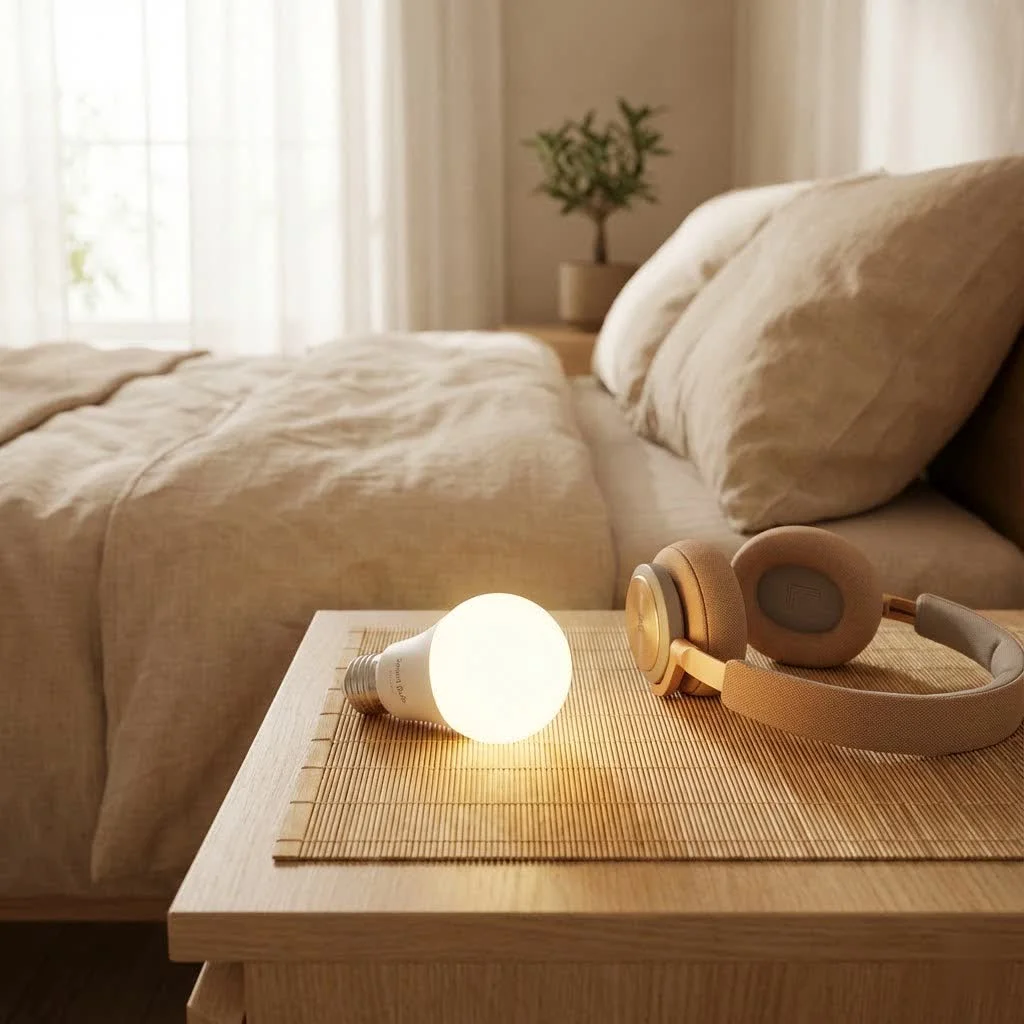
An Energizer smart bulb transforms your home lighting by offering app and voice control, tunable white light, and millions of colors, all without needing a separate hub. These bulbs connect directly to your 2.4GHz Wi-Fi network, simplifying installation and integration with popular voice assistants like Amazon Alexa and Google Assistant, making them an accessible choice for smart home enthusiasts.
What Makes Energizer Smart Bulbs Stand Out?
Energizer has entered the smart lighting market focusing on user-friendliness and versatility, making their smart bulbs a compelling choice for many homeowners. Their appeal lies in a blend of accessible technology and robust performance.
No Hub? No Problem!
One of the biggest hurdles for many people considering smart lighting is the perceived complexity and cost of a central hub. This is where the Energizer smart bulb truly shines. They are designed to connect directly to your home’s 2.4GHz Wi-Fi network, eliminating the need for a separate bridge or hub. This “no hub required” feature simplifies installation and significantly reduces the initial investment, making smart lighting more approachable for everyone.
A Spectrum of Possibilities: Colors and White Tones
Imagine setting the perfect ambiance for a cozy movie night with warm, dimmed light, or energizing your morning routine with crisp, cool white illumination. Energizer smart bulbs offer a vast range of lighting options. Many models boast full RGB color capabilities, allowing you to choose from millions of colors to match any mood or occasion. Beyond color, they often provide tunable white light, letting you adjust the warmth from a soft, inviting glow to a bright, productive daylight simulation. This flexibility is a major upgrade for personalizing your environment.
Seamless Smart Home Integration
An Energizer smart bulb isn’t just about controlling light from your phone; it’s about making your home smarter. These bulbs integrate effortlessly with popular voice assistants like Amazon Alexa, Google Assistant, and even Siri Shortcuts. This means you can simply say, “Alexa, dim the living room lights to 50%,” or “Hey Google, turn the kitchen lights blue,” and watch your commands come to life. This hands-free control adds a layer of convenience and futuristic flair to your daily life.
Why Choose Energizer?
Beyond the smart features, Energizer brings decades of expertise in power and lighting to the table. Their smart bulbs are generally energy-efficient LEDs, meaning they consume less power and have a longer lifespan than traditional incandescent bulbs, saving you money on your electricity bill and reducing the frequency of bulb replacements. The brand’s reputation for quality also assures a level of reliability that’s crucial for any smart home device.
Getting Started: Installing Your Energizer Smart Bulb
|
Our Picks for the Best Smart Bulb in 2026
As an Amazon Associate I earn from qualifying purchases.
|
||
| Num | Product | Action |
|---|---|---|
| 1 | Bluex Bulbs 3 Pack Motion Sensor LED Light Bulb A21, 15W 1300 Lumens, Warm White 3000K, Automatic On/Off Security Light, E26 Medium Base Indoor & Outdoor Use, 120V (3000K - Warm White) |

|
| 2 | Govee Smart Light Bulbs, Color Changing Light Bulb, Work with Alexa and Google Assistant, 16 Million Colors RGBWW, WiFi & Bluetooth LED Light Bulbs, Music Sync, A19, 800 Lumens, 4 Pack |
|
| 3 | Amazon Basics Smart A19 LED Light Bulb, Dimmable Soft White (2700K), 9W (60W Equivalent), 800LM, Works with Alexa Only, 2.4 GHz Wi-Fi, No Hub Required, 4 Pack |
|
| 4 | Tapo TP-Link Smart Light Bulbs, 16M Colors RGBW, Dimmable, Compatible with Alexa and Google Home, A19, 60W Equivalent, 800LM CRI>90, 2.4GHz WiFi only, No Hub Required, L530E(4-Pack) |
|
| 5 | Govee LED Smart Light Bulbs, 1000LM Color Changing Light Bulb, Wi-Fi & Bluetooth Light Bulbs, Work with Alexa and Google Assistant, Dimmable RGBWW A19 75W Equivalent Smart Bulbs, 2 Pack |
|
| 6 | Linkind Smart Light Bulbs, Smart Bulb That Work with Alexa & Google Home, LED Light Bulbs Color Changing, 104 Preset Scene, Music Sync, A19 E26 2.4GHz RGBTW WiFi Bluetooth Light Bulb 60W, 800LM, 4Pack |
|
| 7 | Kasa Smart Light Bulbs that works with Alexa and Google Home, Dimmable Smart LED Bulb, A19, 9W, 800Lumens, Soft White(2700K), CRI≥90, WiFi 2.4Ghz only, No Hub Required, 4 Count (Pack of 1)(KL110P4) |
|
| 8 | Kasa Smart Light Bulbs, Full Color Changing Dimmable Smart WiFi Bulbs Compatible with Alexa and Google Home, A19, 60 W 800 Lumens,2.4Ghz only, No Hub Required, 2-Pack (KL125P2), Multicolor |
|
| 9 | SYLVANIA Wifi LED Smart Light Bulb, 60W Equivalent Full Color and Tunable White A19, Dimmable, Compatible with Alexa and Google Home Only - 4 Pack (75674) |
|
| 10 | Amazon Basics Smart A19 LED Light Bulb, Color Changing, 9W (60W Equivalent), 800LM, Works with Alexa Only, 2.4 GHz Wi-Fi, No Hub Required, 1 Pack |
|
Setting up your new Energizer smart bulb is surprisingly straightforward, designed for even those who aren’t tech-savvy. Here’s a quick guide to get you up and running.
Pre-Installation Checklist
Before you begin, ensure you have these ready:
- Your new Energizer smart bulb.
- A smartphone or tablet.
- Your home Wi-Fi network name and password (ensure it’s a 2.4GHz network, as most smart bulbs don’t support 5GHz).
- The free Energizer Connect app downloaded from your app store.
- An empty light socket, of course!
Step-by-Step Setup Guide
Follow these steps for a smooth installation:
- Screw in the Bulb: Carefully screw your Energizer smart bulb into the desired light fixture.
- Power On: Turn on the light switch. The bulb should start rapidly blinking, indicating it’s in pairing mode. If it doesn’t blink, cycle the power off and on a few times until it does (usually 3-5 cycles).
- Open the App: Launch the Energizer Connect app on your smartphone.
- Add Device: Tap the “+” icon in the upper right corner to add a new device. Select “Lighting Devices” or “Smart Bulb.”
- Confirm Blinking: Confirm that your bulb is rapidly blinking in the app.
- Enter Wi-Fi Details: Select your 2.4GHz Wi-Fi network and enter its password.
- Connect: The app will then attempt to connect to your bulb. This might take a minute or two.
- Name Your Bulb: Once connected, you’ll be prompted to name your bulb (e.g., “Living Room Lamp,” “Kitchen Light”).
- Enjoy! You can now control your Energizer smart bulb directly from the app.
Connecting to Voice Assistants
After setup, link your Energizer Connect account to your preferred voice assistant (Alexa or Google Assistant) through their respective apps. Search for the “Energizer Connect” skill or service, enable it, and log in with your Energizer credentials. Your bulbs will then be discoverable, allowing for voice control.
Unlocking the Full Potential: Tips and Tricks
Owning an Energizer smart bulb is just the beginning. With a few tips, you can transform it from a simple light source into an integral part of your smart home experience.
Mastering the Energizer Connect App
The Energizer Connect app is your central command for your bulbs. Dive into its features to discover scheduling, scene creation, and grouping options. You can group multiple bulbs to control them simultaneously, or set custom scenes that recall specific colors and brightness levels with a single tap.
Creating Dynamic Scenes and Schedules
Automate your lighting to fit your lifestyle.
- Schedules: Set your lights to turn on automatically before you wake up, greet you when you come home, or dim as bedtime approaches. This not only adds convenience but can also enhance home security by making it appear occupied when you’re away.
- Scenes: Create scenes for different activities. A “Movie Night” scene might dim the lights and set them to a warm glow, while a “Focus” scene could activate bright, cool white light for productivity.
Energy Efficiency and Cost Savings
Smart bulbs are inherently more energy-efficient than traditional bulbs, but an Energizer smart bulb takes it a step further with smart controls. By setting schedules and using dimming features, you can reduce energy consumption even more, lowering your electricity bills. Plus, LEDs last significantly longer, meaning fewer replacements and less waste.
Troubleshooting Common Energizer Smart Bulb Issues
Even the smartest devices can encounter hiccups. If your Energizer smart bulb isn’t behaving as expected, these common troubleshooting tips can help.
Bulb Not Connecting to Wi-Fi
- Check your Wi-Fi: Ensure your router is broadcasting a 2.4GHz signal. Smart bulbs typically don’t support 5GHz.
- Router Distance: Move the bulb closer to your Wi-Fi router during initial setup. Once connected, it generally has a decent range, but proximity helps with pairing.
- Power Cycle: Try turning the light switch off and on 3-5 times rapidly. This often resets the bulb into pairing mode, indicated by rapid blinking.
- Re-enter Password: Double-check your Wi-Fi password in the Energizer Connect app. Typos are common!
Voice Commands Not Working
- Check App Connection: Ensure the bulb is responsive in the Energizer Connect app. If not, troubleshoot its Wi-Fi connection first.
- Link Account: Verify that your Energizer Connect account is properly linked to Alexa or Google Assistant. You might need to disable and re-enable the skill/service.
- Device Name: Use the exact name you gave the bulb in the Energizer Connect app (e.g., “Living Room Lamp”). Avoid ambiguous names.
Flickering or Unresponsive Bulb
- Power Cycle: Again, try a quick power cycle (off/on 3-5 times). This can resolve temporary glitches.
- Firmware Update: Check the Energizer Connect app for any available firmware updates for your bulb. Outdated firmware can sometimes cause instability.
- Fixture Compatibility: While rare, some older dimmer switches or incompatible fixtures can cause flickering. Ensure the bulb is in a standard, non-dimming fixture for optimal performance, or that any dimmer is specifically designed for smart LEDs.
Beyond the Bulb: Expanding Your Smart Lighting Ecosystem
An Energizer smart bulb is a fantastic starting point, but Energizer offers a wider range of smart products to create a truly connected home.
Other Energizer Smart Products
Beyond traditional bulbs, Energizer’s smart home line includes things like smart plugs, LED light strips, and security cameras, all controllable through the same Energizer Connect app. This allows for a cohesive and easily expandable smart home ecosystem, letting you manage everything from a single interface.
Expert Insight on Smart Home Expansion
“The beauty of today’s smart home technology, especially with accessible devices like the Energizer smart bulb, is its modularity,” says Dr. Lena Petrova, a renowned smart home technology analyst. “You can start small, perhaps with just a few smart bulbs, and gradually add smart plugs, sensors, or other lighting elements as your needs and comfort level evolve, all while maintaining a unified control experience.” This iterative approach makes smart home adoption less daunting and more customizable.
Frequently Asked Questions
Q: Are Energizer smart bulbs compatible with Apple HomeKit?
A: Currently, most Energizer smart bulbs connect directly via Wi-Fi and are compatible with Amazon Alexa, Google Assistant, and Siri Shortcuts (through the Energizer Connect app), but not natively with Apple HomeKit.
Q: Do Energizer smart bulbs require a hub?
A: No, one of the key advantages of Energizer smart bulbs is that they connect directly to your 2.4GHz Wi-Fi network, meaning no additional hub is required.
Q: How do I reset my Energizer smart bulb?
A: To reset an Energizer smart bulb, rapidly turn the light switch off and on 3-5 times. The bulb will begin rapidly blinking, indicating it has entered pairing mode and is ready to be set up again.
Q: Can I use Energizer smart bulbs outdoors?
A: Most Energizer smart bulbs are designed for indoor use. Always check the product specifications for an IP rating if you intend to use a bulb in an outdoor fixture to ensure it’s rated for the elements.
Q: What’s the warranty on Energizer smart bulbs?
A: Warranty periods can vary by specific product and region. It’s always best to check the product packaging or Energizer’s official website for the most accurate and up-to-date warranty information.
Conclusion
Embracing an Energizer smart bulb is more than just upgrading your lighting; it’s about elevating your entire home experience. With their easy setup, versatile control, energy efficiency, and seamless integration with popular smart home platforms, these bulbs offer a brilliant way to personalize your environment, enhance convenience, and even save on energy costs. Whether you’re setting a cozy mood, streamlining your daily routines, or simply enjoying the magic of voice-controlled lighting, an Energizer smart bulb empowers you to create the perfect ambiance with unprecedented ease. improve your home, one smart light at a time.
Frequently Asked Questions
Are Energizer smart bulbs compatible with Apple HomeKit?
Most Energizer smart bulbs are not natively compatible with Apple HomeKit. They primarily connect via Wi-Fi and integrate with Amazon Alexa, Google Assistant, and Siri Shortcuts through the Energizer Connect app.
Do Energizer smart bulbs require a separate hub for operation?
No, Energizer smart bulbs do not require a separate hub. A key advantage is their ability to connect directly to your home's 2.4GHz Wi-Fi network, simplifying setup and reducing initial costs.
How do I reset my Energizer smart bulb if it's not responding?
To reset an Energizer smart bulb, rapidly cycle the light switch off and on 3-5 times. The bulb will then begin rapidly blinking, indicating it has entered pairing mode and is ready for re-setup.
Can Energizer smart bulbs be used in outdoor light fixtures?
Most Energizer smart bulbs are designed for indoor use. For outdoor applications, always check the product specifications for an IP rating to ensure the bulb is adequately protected against environmental elements.
What is the typical warranty period for Energizer smart bulbs?
Warranty periods for Energizer smart bulbs can vary by specific product model and geographical region. It is always recommended to consult the product packaging or Energizer's official website for the most accurate and current warranty details.
Smart home that does not lock you in
Free PDF — protocol compatibility matrix for 30 hubs and devices.
As someone who’s tried a few different smart bulbs, the Energizer ones really impressed me with their simplicity. No hub needed is a game changer for accessibility. I’ve got them in my kitchen and dining area, and the ability to switch between bright task lighting and a warmer, more ambient setting with just my voice is fantastic. They’ve been super reliable so far.
I bought a couple of these Energizer smart bulbs to try out in my bedroom. While the voice control with Alexa works well, I’ve had a bit of trouble getting the app to consistently recognize one of the bulbs. It usually sorts itself out after a minute or two, but it’s a little annoying when I just want to quickly dim the lights. The millions of colors are fun though.
These Energizer bulbs are pretty good for the price. I’ve got them integrated with my Google Assistant, and it’s super convenient to just tell it to turn the lights on or off. The tunable white light feature is also great for adjusting from bright work light to a softer evening glow. My only minor complaint is that sometimes there’s a slight delay when I use the app, but it’s not a dealbreaker.
I was really hesitant to jump into smart lighting because I didn’t want another hub cluttering up my router area. The fact that these Energizer smart bulbs connect directly to my 2.4GHz Wi-Fi was a huge selling point. Setup was a breeze, and I love being able to change the colors for different moods in my living room. Definitely recommend them for anyone looking for an easy smart home upgrade.